
Browse the Web with a keyboard
Move through links, forms and tabs, recognise keyboard focus and practise useful browser shortcuts without submitting a form accidentally.
Follow the method ↓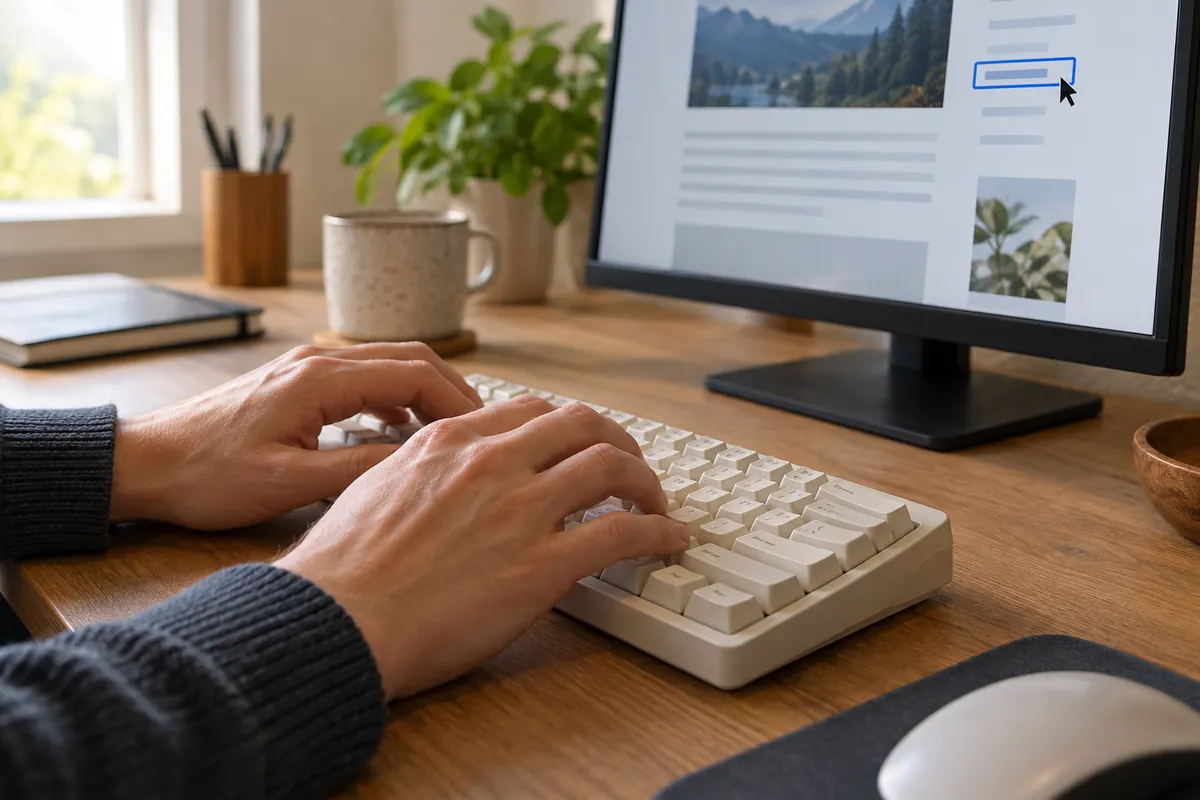
The answer in 30 seconds
Start on a simple page without a payment or publishing action. Practise finding a link, opening it and returning before moving on to more complex forms.
Tab generally moves between interactive elements and Shift + Tab moves backwards. A focus outline shows your position; exact shortcuts depend on your browser and operating system.
Examples to adapt
This can be a site defect. Avoid repeatedly activating controls when you cannot see which one is selected.
Use its intended close control and return to the content without submitting by mistake.
Follow the method
- 1Find the focus
Press Tab and look for a visible outline. Move forward a few elements, then return with Shift + Tab. Start without using the mouse and note which element receives focus after each press of Tab. Use Shift + Tab to move back. If focus becomes invisible, record the exact step: guessing its position is not enough to operate the page reliably.
- 2Open a link
Focus a link and press Enter. Use your browser’s documented back command to return.
- 3Explore a form
Move through fields and buttons without submitting. Check that labels explain the expected information. Try valid input and a deliberate error without submitting real personal information. Check that you can find the field to correct and understand its message. After opening a dialog, also observe where focus returns when you close it.
- 4Keep a short reference
Look up your browser’s shortcuts for the address bar, finding text and managing tabs. Learn the commands that match your actual tasks.
A closer look
Find your way without a mouse
Exercise: use a search form, then return to the field to correct the query. Observe which control receives focus at each stage.
| Need | Command | What to observe |
|---|---|---|
| Move forward | Tab | The next link or field becomes active. |
| Go back | Shift + Tab | The previous control receives focus. |
| Change area | F6 | Focus moves to the next frame or area. |
Shortcuts can depend on the operating system and its settings. Record the browser and command if navigation fails.
Should Tab visit every sentence?
No. Tab moves through links and fields, not every sentence of text.
Supporting documentation : Mozilla — Keyboard shortcuts · Consulted on 2026-10-21. Examples and calculations are illustrative.
A checklist to keep
Use these checks to record your observations. They are a reading aid, not an automatic assessment.
| Check | What to examine | Action |
|---|---|---|
| Forward | Tab | Find the focus |
| Backward | Shift + Tab | Check order |
| Open a link | Enter | Check destination |
| Shortcuts | Browser help | Choose the right system |
Read the checklist directly in the table.
What to check
Shortcuts can differ between systems.
A visible control may still have keyboard accessibility problems.
Practise without consequential actions first.
Common questions
Does every page work with a keyboard?
Pages should support accessible interaction, but defects can remain.
How do I report a problem?
Include the page, browser, command and point where navigation becomes blocked.
Sources and documentation
Documentation consulted on . Examples are illustrative; interfaces and results may change.