
Scan a document with your phone
Capture every page clearly, check the order and store the resulting file where you can retrieve it.
Follow the method ↓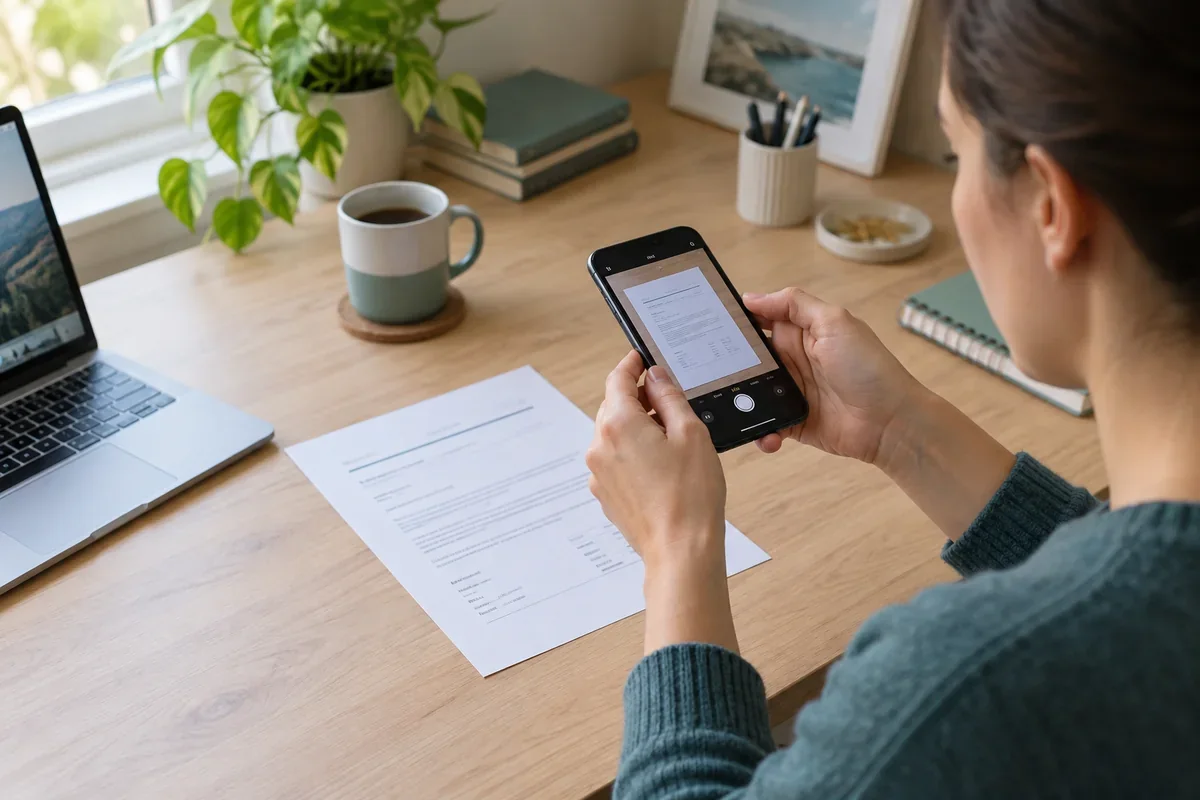
The answer in 30 seconds
A document scan is more than a photograph. Cropping, contrast and page order determine whether a recipient can read names, dates and small print.
Use a scanning feature, place the sheet on an even surface, capture each page, inspect the crop and text at normal zoom, then save with a descriptive name in an appropriate location.
Examples to adapt
Check that pages are present and in the intended order.
Zoom in on totals and dates after capture before discarding the paper.
Choose a storage location and sharing method suited to its contents.
Follow the method
- 1Prepare the page
Use even light, a plain surface and a steady camera; flatten folds where possible.
- 2Capture and crop
Use a document scanning feature and adjust borders without cutting off text.
- 3Review
Inspect corners, small text, signatures and all pages at a readable zoom.
- 4Save and locate
Choose PDF or image as required, name the file and verify where it was stored.
A closer look
A readable image still needs a text check
Fictional case: you scan a two-page invitation to find an address and a time. Character recognition helps you search; compare the result with the image before relying on it.
| Check | Observation in this example | Next action |
|---|---|---|
| Pages | The second page contains the access map. | Keep both pages in their original order. |
| Digits | Recognised text says 18:00; the image says 16:00. | Correct from the original rather than guessing. |
| Table | Two date columns have become mixed together. | Rebuild the associations from the image. |
| Search | The venue name is found in the text. | Also check its address and accented characters. |
Keep the source image and corrected text as separate objects. Google notes that complex formatting may not survive conversion.
Does a PDF with selectable text necessarily have accurate recognition?
No. Selectable text can contain errors. Check passages that affect your next action, then open the file on the recipient’s device.
Supporting documentation : Google Drive · Convert PDF and photo files to text · Consulted on 2026-10-29. Examples and calculations are illustrative.
A checklist to keep
Use these checks to record what you found. The grid supports a decision; it does not make one for you.
| Check | What to examine | Action |
|---|---|---|
| Page | Are all sides and pages included? | Count |
| Crop | Is any text cut off? | Check |
| Readability | Can small print be read? | Zoom |
| Format | Does the recipient accept it? | Confirm |
| Storage | Where was it saved? | Locate |
Read the checklist directly in the table.
What to check
Optical text recognition may misread faint or handwritten text.
A scan may contain private information in visible margins.
A cloud scanner can upload the document, so check its destination.
Common questions
Can a phone replace a physical original?
Not for every administrative or legal purpose; check the recipient's requirements.
Why is my PDF unreadable?
Retake blurry pages in better light and inspect the final file, not just the camera preview.
Sources and documentation
Documentation consulted on . Examples are illustrative; interfaces and results may change.