
Save and find browser bookmarks
Save the useful destination, name it clearly and test the bookmark afterwards.
Follow the method ↓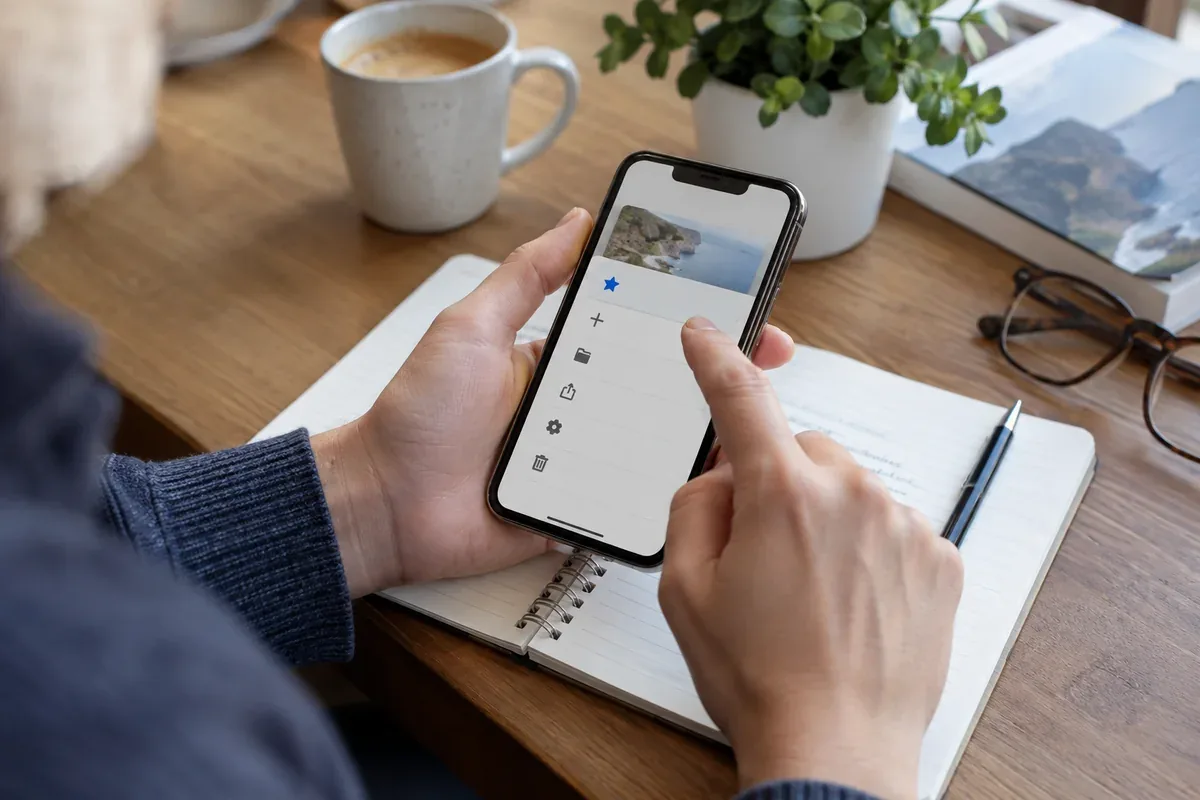
The answer in 30 seconds
A bookmark preserves an address rather than a frozen copy of the page. A clear name and a stable destination make it easier to return to useful material.
Open the actual page you need, add a bookmark and choose a meaningful title. Reopen it to check the result and note important document dates separately.
Examples to adapt
Add the subject and publisher to the bookmark name.
Keep the edition and consultation date in your notes; a bookmark does not preserve the old contents.
Follow the method
- 1Open the destination
Save the relevant record or document, not a temporary results page. Check the organisation and title.
- 2Add and name the bookmark
Use the browser’s bookmark control. In desktop Chrome, the address-bar star provides this action; choose a suitable folder.
- 3Find it again
Use the bookmark manager or the documented bookmark search in your browser. Search by meaningful words from the title.
- 4Test and maintain it
Reopen the saved link. Correct an unsuitable destination or choose a more stable page if the link no longer reaches the intended resource.
A closer look
Return to the right page within a site
Fictional case: you want to retain a museum record rather than its home page. A useful bookmark title helps identify the destination.
| Check | Observation in this example | Next action |
|---|---|---|
| Destination | The home page was saved by mistake. | Open the exact record and correct the bookmark address. |
| Title | Three bookmarks are called “Home”. | Use a distinctive title naming the venue and information. |
| Folder | The record sits in a rarely used folder. | Move it into the relevant project folder. |
| Test | The bookmark opens after closing the tab. | Check the title, destination and record itself. |
A bookmark saves an address; it does not necessarily preserve the content or its state when saved.
How can I find a bookmark when I forget its folder?
Chrome supports bookmark search with @bookmarks in the address bar. Search a title or address word, then verify the destination.
Supporting documentation : Google Chrome · Create, find and edit bookmarks · Consulted on 2026-10-29. Examples and calculations are illustrative.
A checklist to keep
Use these checks to record what you found. The grid supports a decision; it does not make one for you.
| Check | What to examine | Action |
|---|---|---|
| Destination | Actual useful page | Open before saving |
| Name | Subject and publisher | Use a clear title |
| Context | Profile and folder | Check where it is stored |
| Maintenance | Working link and edition | Reopen periodically |
Read the checklist directly in the table.
What to check
Check the profile where the bookmark is saved.
Use a stable destination where possible.
Avoid including confidential tokens in shared bookmark exports.
Common questions
Does a bookmark save a page offline?
It normally saves a link. Use a separate documented offline-saving method if needed.
What should a title contain?
Enough subject and origin information to recognise the page later.
Sources and documentation
Documentation consulted on . Examples are illustrative; interfaces and results may change.