
Control website notifications in your browser
Review which sites can interrupt you, revoke unneeded access and distinguish browser alerts from system alerts.
Follow the method ↓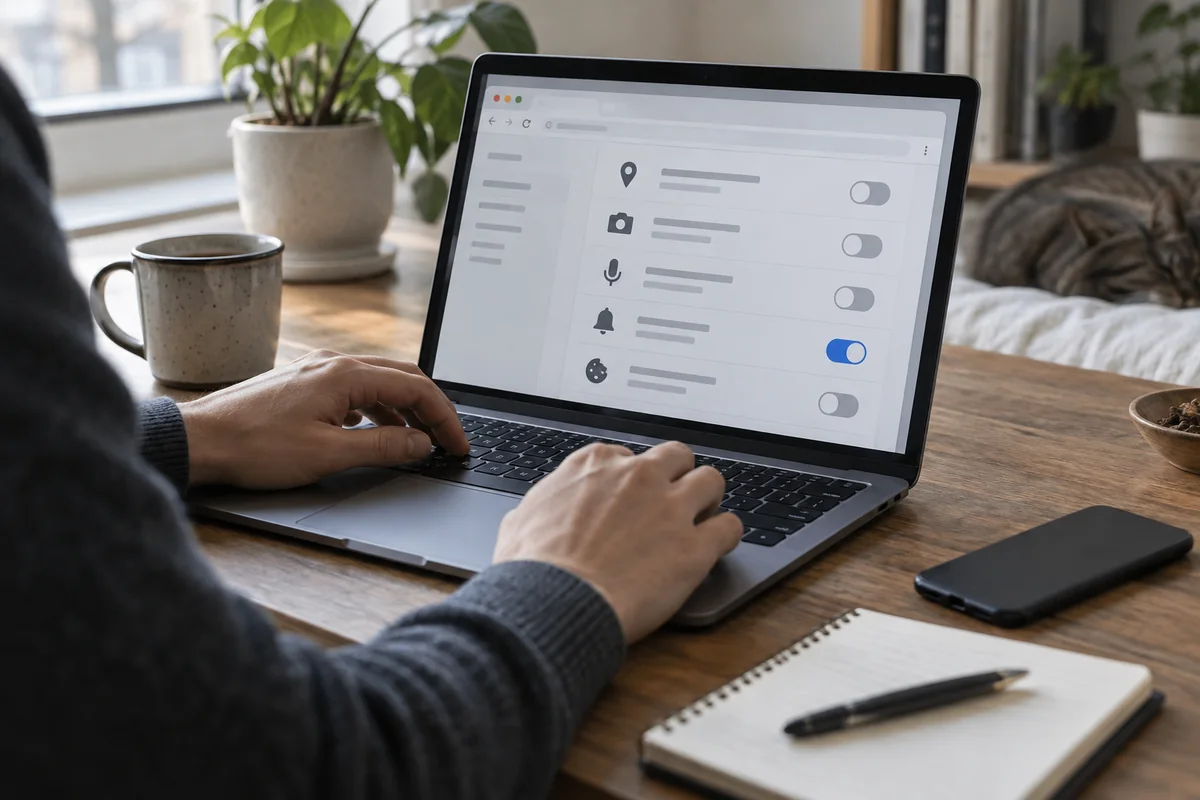
The answer in 30 seconds
A website may ask permission to send notifications even when its page is no longer open. An unexpected alert is not itself proof that your device has a problem.
Open the browser's site notification settings, identify the sending site, remove permissions you no longer need and return through a known address before acting on an alarming message.
Examples to adapt
Do not follow its button; identify the site that sent it and check the real service separately.
Keep only a few sites whose alerts serve a clear purpose.
Check operating system notification settings as well as the browser's site permissions.
Follow the method
- 1Identify the sender
Look at the notification's website and the browser that displayed it.
- 2Open permissions
Use the browser's settings to list websites with notification access.
- 3Revoke selectively
Remove unfamiliar or unnecessary sites; you can allow a useful site again later.
- 4Test and prevent
Check that unwanted alerts stop and decline new requests unless they meet a real need.
A closer look
Identify what actually sends the alert
Fictional case: a notification returns after closing a page. Distinguish the message’s displayed name from the authorised website.
| Check | Observation in this example | Next action |
|---|---|---|
| Origin | The message displays a familiar service name. | Read the browser’s origin label without opening the link. |
| Permission | The site appears among allowed senders. | Revoke permission if the alerts are no longer wanted. |
| Pop-up | A new window opens from the page. | Also inspect pop-up settings: this is a different permission. |
| Missing alert | The site is allowed but no alert appears. | Check system settings and session state. |
Chrome separates notification permission from pop-up settings. Adjust the relevant site; permission is not evidence of trustworthiness.
Does blocking notifications delete my account on the site?
This setting controls browser notifications. It neither deletes an account nor unsubscribes you from emails.
Supporting documentation : Google Chrome · Use notifications to get alerts · Consulted on 2026-10-29. Examples and calculations are illustrative.
A checklist to keep
Use these checks to record what you found. The grid supports a decision; it does not make one for you.
| Check | What to examine | Action |
|---|---|---|
| Sender | Which website sent it? | Identify |
| Purpose | Do its alerts help? | Decide |
| Permission | Is it allowed in the browser? | Review |
| Action | Can access be removed? | Revoke |
| Result | Did the unwanted alert stop? | Test |
Read the checklist directly in the table.
What to check
Closing a tab may not revoke notification permission.
An alert can imitate a system message.
Notification controls differ across browsers and devices.
Common questions
Will blocking notifications break a website?
Usually its pages still work; you may simply stop receiving its alerts.
Should I clear all browser data?
Not as a first step. Review the site permission specifically to avoid losing useful state.
Sources and documentation
Documentation consulted on . Examples are illustrative; interfaces and results may change.